Formatting a resume correctly is just as important as writing great content. A clean, professional layout helps recruiters scan your information in seconds and ensures your resume passes Applicant Tracking Systems (ATS).
If you're wondering “How do you format a resume?”, this guide from SparkCV explains everything: layout, margins, fonts, structure, and proven formatting rules that work in 2025.
What Is Resume Formatting?
Resume formatting refers to the overall structure, layout, and visual organization of your resume. It determines how your information is presented—so hiring managers can quickly understand your qualifications without digging through cluttered text or inconsistent design.
A well-formatted resume is:
- Clean — everything is organized logically.
- Readable — recruiters can scan it in seconds.
- Professional — it reflects attention to detail.
- ATS-friendly — it passes Applicant Tracking Systems without errors.
Effective resume formatting typically includes:
- Choosing the right resume format (chronological, functional, or hybrid)
- Ordering your resume sections in a clear and intuitive way
- Using consistent fonts, spacing, margins, and headings
- Keeping the layout optimized for ATS parsing
- Saving your final resume in a reliable file format, usually PDF or DOCX
When your resume is formatted correctly, recruiters can locate your most important experiences, skills, and achievements within 6–7 seconds, dramatically increasing your chances of landing an interview.
The 3 Standard Resume Formats (Which One Should You Choose?)
There are three universally recognized resume formats used by job seekers across the US. Each serves a different purpose, depending on your background and career stage.
Below is a detailed breakdown to help you choose the best one.
1. Reverse-Chronological Resume Format (Best for Most People)
Recommended by SparkCV
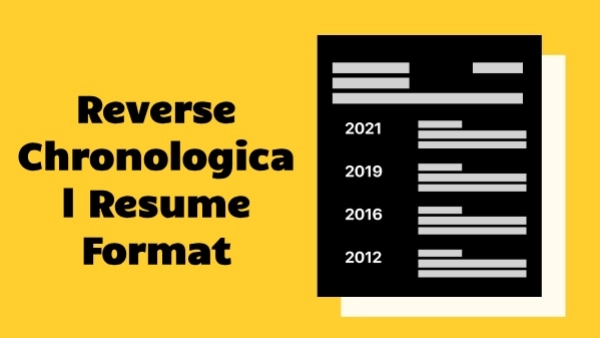
The reverse-chronological format lists your job experience from most recent to oldest. It’s the gold standard in the US job market and preferred by nearly 90% of hiring managers, making it the safest and most effective choice for most applicants.
Best For:
- Professionals with a consistent work history
- Applicants applying for roles in their field
- Job seekers with measurable achievements
- People who have been promoted or advanced over time
Pros:
- Highly ATS-friendly
- Straightforward and easy for recruiters to skim
- Instantly shows your relevant work experience
- Works well for both entry-level and experienced candidates
Cons:
- Not ideal if you have big employment gaps
- Less effective for applicants changing industries
2. Functional Resume Format
The functional format emphasizes skills over work history. Instead of focusing on job titles and dates, it highlights abilities, competencies, and transferable strengths.
Best For:
- Recent graduates with limited experience
- Professionals with non-traditional career paths
- Individuals with long career breaks
- Job seekers transitioning into a new field who want to showcase skills first
Pros:
- Draws attention to skills instead of timeline
- Helps downplay employment gaps
- Useful when your experience doesn’t directly match the job you want
Cons:
- Least trusted by recruiters (sometimes seen as “hiding something”)
- Not very ATS-friendly because sections may confuse parsing algorithms
- Can be harder to evaluate since work history is minimized
3. Hybrid (Combination) Resume Format
The hybrid format blends the chronological and functional styles, giving equal weight to skills and experience. It typically includes a robust skills section followed by a detailed employment history.
Best For:
- Career changers showcasing transferable skills
- Professionals with diverse or multidisciplinary experience
- Senior-level candidates who want to highlight both expertise and achievements
- Job seekers with a mix of technical and soft skills
Pros:
- Balanced and highly customizable
- Great for showcasing strengths before listing job titles
- Allows you to emphasize achievements and specialized skills
Cons:
- More complex to format correctly
- Can become cluttered if not designed carefully
- Less ATS-friendly than the pure chronological format
How to Format a Resume (Step-by-Step)
Formatting your resume correctly is just as important as writing strong content. A polished layout helps recruiters scan your information quickly, ensures compatibility with Applicant Tracking Systems (ATS), and presents you as a professional candidate from the first glance.
Below is the enhanced, step-by-step resume formatting structure SparkCV recommends for creating a clean, modern, and fully ATS-friendly resume.
Step 1: Use Standard Margins
Your resume should have enough white space to make it readable without looking cramped.
- 1 inch (2.54 cm) margins on all sides — the industry standard
- Minimum 0.5 inch margins if you need more room
Proper margins improve visual balance, prevent text from appearing squeezed, and ensure no information is cut off when printed or scanned into an ATS.
Step 2: Choose a Clean, Professional Font
Your font selection has a major impact on readability and ATS performance. Stick with simple, widely used fonts that render properly on all devices.
Best resume fonts:
- Arial
- Calibri
- Helvetica
- Cambria
- Inter
- Georgia
Font size guidelines:
- 10–12 pt for body text
- 14–16 pt for headings and section titles
Avoid script, decorative, or heavily stylized fonts. They’re hard to read, appear unprofessional, and may confuse ATS systems that rely on text recognition.
Step 3: Keep Proper Line Spacing
Proper spacing helps your resume “breathe” and makes it easier for hiring managers to skim through.
- 1.0–1.15 line spacing for all text
- 6–12px extra spacing between sections to create clear separation
Good spacing enhances readability on both desktop and mobile screens and makes your resume visually more appealing.
Step 4: Use a Clear Section Order
A well-structured resume follows a logical order that recruiters instantly recognize. Your resume should be easy to navigate, with sections clearly labeled and arranged according to relevance and priority.
Recommended modern resume structure:
Header
Include:
- Full Name
- Current Job Title
- Phone Number
- LinkedIn URL / Online Portfolio
Keep your header simple, professional, and free of unnecessary graphics.
Professional Summary or Objective
A 2–3 sentence overview highlighting your experience, strengths, and value proposition.
- Use a summary if you have experience
- Use an objective if you’re a student, recent graduate, or career changer
Work Experience (Reverse Chronological Order)
List:
- Job Title
- Company Name
- Location
- Employment Dates
- 3–5 bullet points describing achievements
Use action verbs, quantifiable results, and ATS-friendly wording.
Skills Section
Include a mix of hard and soft skills relevant to the role.
Avoid generic or outdated skills.
Education
Include:
- Degree
- Major
- School
- Graduation Year (optional if older)
Optional Sections
Depending on your field and background, consider adding:
- Certifications
- Projects
- Languages
- Awards & Honors
- Publications
- Volunteer Work
These sections help you stand out, especially for technical roles or early-career applicants.
Step 5: Keep the Layout Consistent
Consistency is key to creating a professional and cohesive resume.
- Use the same heading style (font, size, weight) across all sections
- Align dates to the right for easy scanning
- Use consistent bullet types, ideally simple round bullets (•)
- Use bold and italics sparingly to highlight key information
- Limit your design to one or two colors (black + blue is the safest combination)
Consistency enhances readability and eliminates distractions that may pull focus away from your achievements.
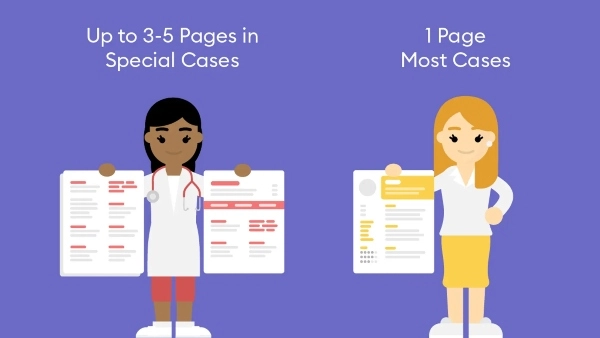
Step 6: Keep It to One Page (If Possible)
Hiring managers spend only a few seconds reviewing each resume. A concise, one-page document helps ensure they see your most important information immediately.
Use:
- One page → if you have under 10 years of experience
- Two pages → if you have extensive experience, multiple technical projects, or senior-level roles
Avoid unnecessary details, long paragraphs, and anything that doesn’t directly support your candidacy.
Step 7: Save in the Right File Format
The final formatting step is saving your resume in a format that preserves your layout and remains ATS-friendly.
- PDF → Best option; keeps your formatting intact across all devices
- DOCX → Use only if the job description specifically requests it
File naming best practice:
Firstname-Lastname-Resume.pdf
This looks clean, professional, and easy for recruiters to file.
Resume Formatting Example (Simple & ATS-Friendly)
Here’s an example of what a properly formatted, ATS-ready resume looks like:
[Full Name]
Job Title
Email | Phone | LinkedIn | Portfolio
Professional Summary
Results-driven Marketing Specialist with 5+ years of experience increasing brand visibility, generating qualified leads, and optimizing multi-channel campaigns. Skilled in SEO, content strategy, data analytics, and conversion optimization.
Work Experience
Marketing Specialist — ABC Company
2019–2024
- Increased website traffic by 42% through strategic SEO and content improvements
- Managed a $120k annual advertising budget across Google, Meta, and LinkedIn ads
- Improved lead conversion rate by 18% through CRO and A/B testing initiatives
Skills
- SEO
- Content Strategy
- Google Analytics
- Copywriting
- Email Marketing
Education
BA in Marketing — XYZ University
Common Resume Formatting Mistakes to Avoid
Avoid these mistakes to keep your resume clean, professional, and ATS-compatible:
- Using decorative or hard-to-read fonts
- Adding photos (unless required by your country or industry)
- Writing long, dense paragraphs
- Using too many colors or graphics
- Including irrelevant personal information
- Saving your resume as a JPG or image file
- Using icons or symbols ATS may not read properly
Format Your Resume Instantly With SparkCV
Manually formatting a resume can be time-consuming — and even small mistakes may affect your chances of getting interviews.
With SparkCV’s Free Resume Builder, you can:
- Choose from ATS-friendly templates
- Automatically format margins, spacing, fonts, and layout
- Download in PDF or DOCX
- Generate resume content with AI assistance
- Create matching cover letters
Build a job-winning resume in minutes — no formatting required.